Purchasing a membership

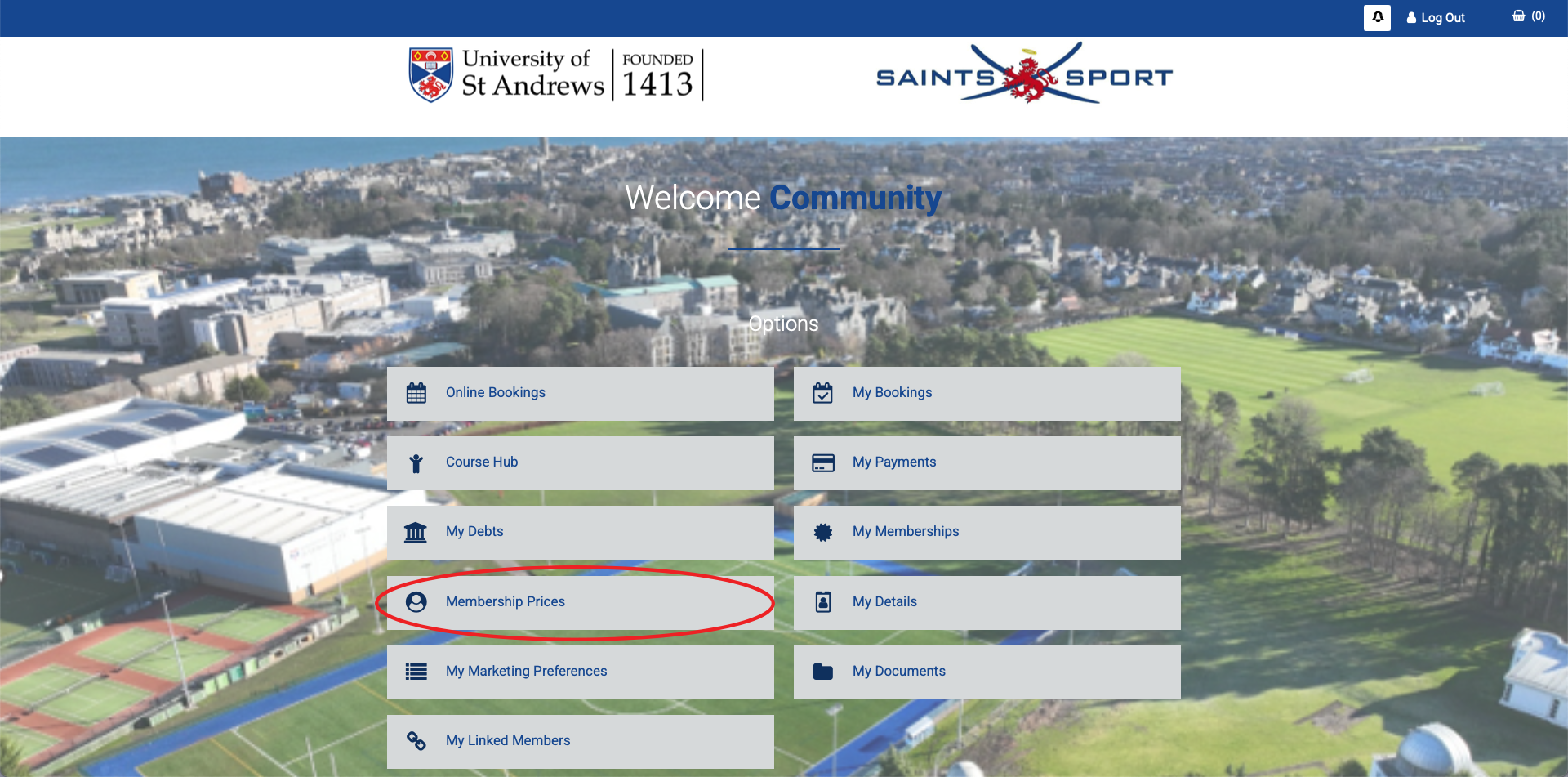
All registered Leisure Hub users can browse and add memberships to their basket by clicking on the ‘Membership Prices’ tab on the homepage.

Choosing a membership

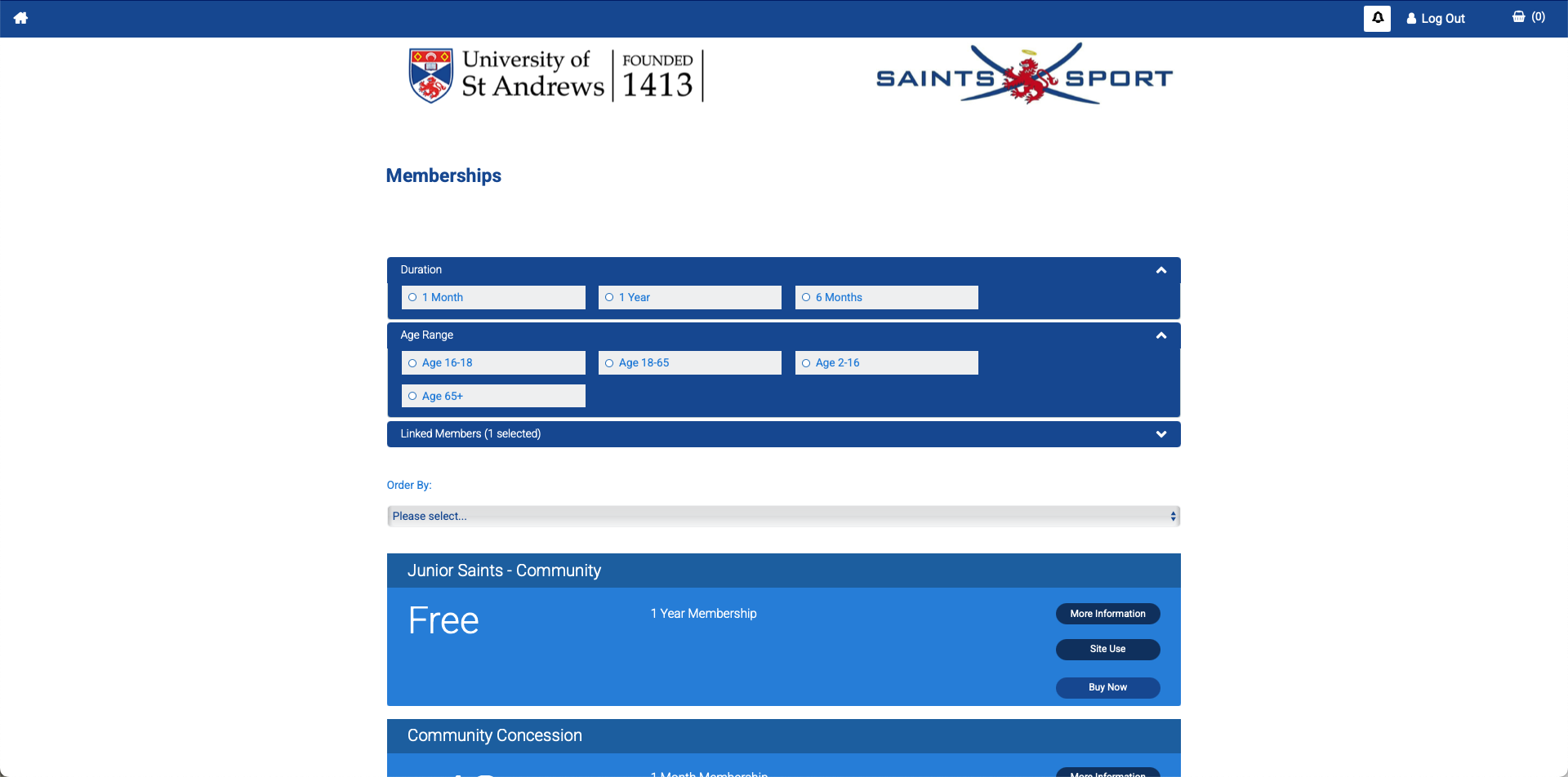
The top of the membership selection page displays available membership filters as well as dropdowns to change the order in which memberships are displayed. Scroll down the page to view the different membership options.
Membership benefits

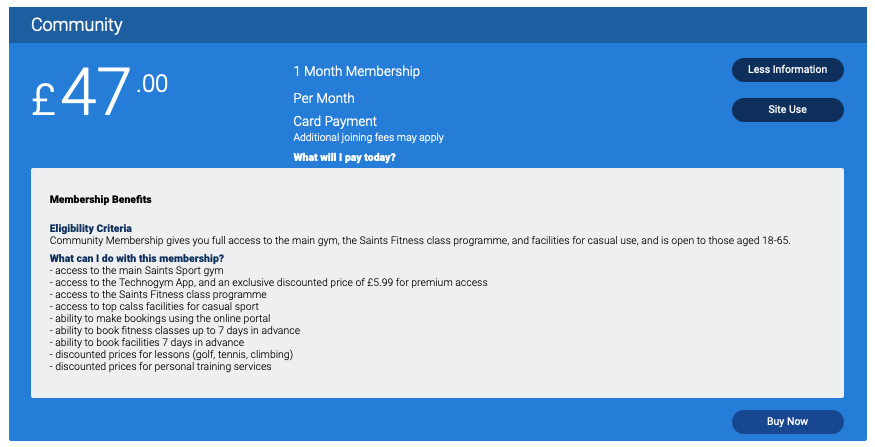
Click on the ‘More Information’ button to see eligibility criteria and membership benefits for each membership type:

Buying a membership

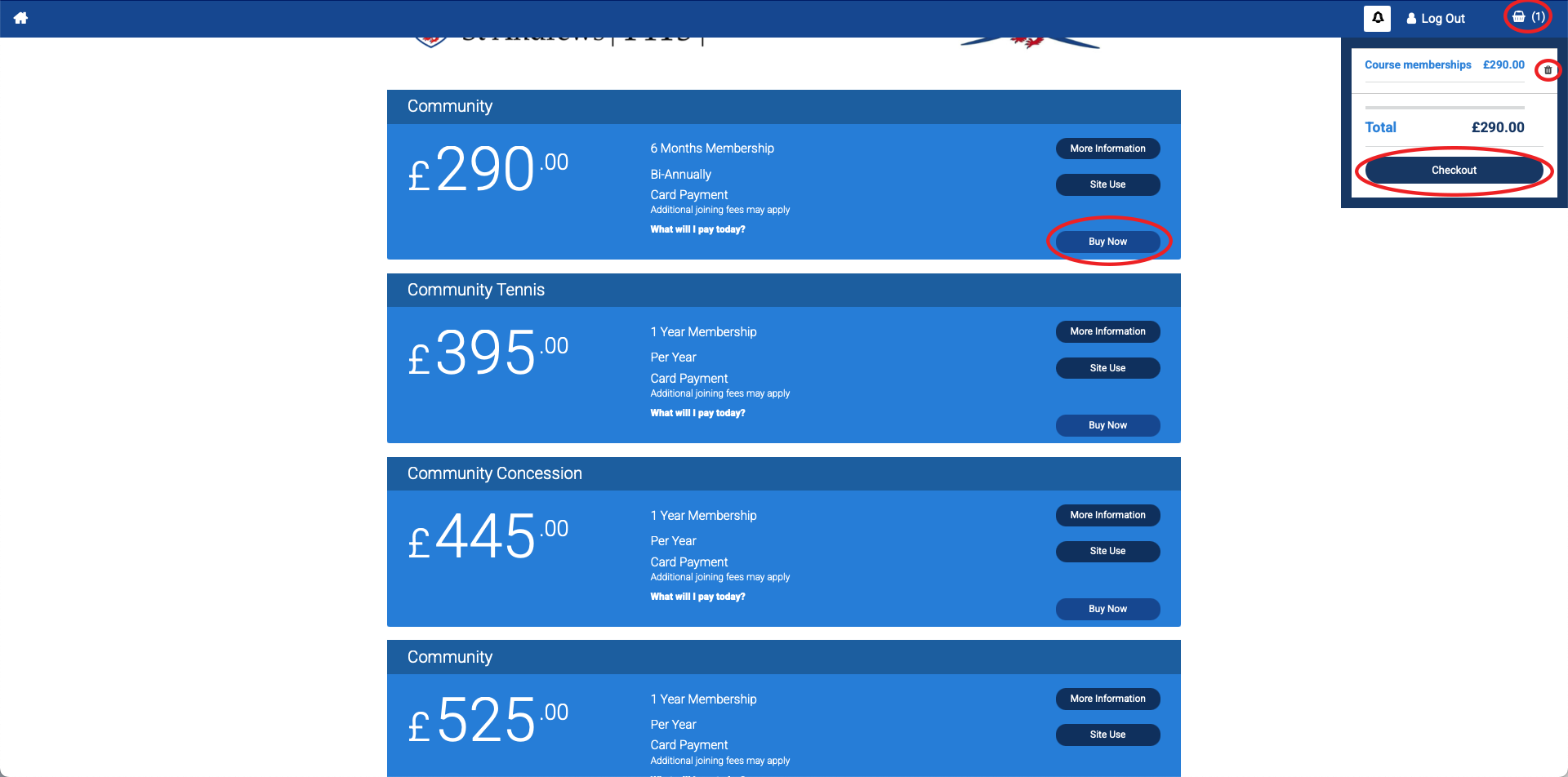
When Buy Now is selected on a membership tile the membership will be added to the basket, additional memberships can be added to the basket before checking out.

To begin checkout, hover over the Basket summary and select Checkout. If required, items can be removed from the basket by selecting the bin icon.

The Basket Details page gives an overview and price breakdown of the memberships added to the basket. Memberships can be removed from the basket at this stage if required.

Once happy with their basket a person can begin the Validation process by clicking Continue, agree to the Terms and Conditions, and proceed to make payment.

Proof of entitlement and age restrictions

Please note that some memberships require proof of entitlement before they can be made active, for example Community Concession, Junior Saints Staff Child.

If the membership that the member is purchasing has aged based pricing, then the Age Restrictions Apply message will be displayed.

Membership confirmation

Once payment has been taken, a confirmation email will be sent to the members email address recorded in Leisure Hub. The confirmation email will contain the transaction information and breakdown of membership purchases.

The member has the option to view the Transaction Confirmation through a web browser by following the Link that is contained within the email (this will require them to enter their Leisure Hub login details).