
Finding an activity
Multiple features are available to help a user refine their search to help choose the right booking, including filters, calendar date selector, spaces available, activity search bar, day selector.

This section of the portal, accessed by clicking on the ‘Online Bookings’ tab on the homepage, allows customers to browse and add items (fitness classes, open climbing sessions, sports facilities) to their basket.
Multiple features are available to help a user refine their search to help choose the right booking, including filters, calendar date selector, spaces available, activity search bar, day selector.
Please note that you need to ensure the relevant tab for your activity is highlighted in blue, any of the tabs highlighted in grey will not show availability.

You can refine your search by typing the name of your activity in the search bar or selecting a category from one of the drop down filters.
Members can use saved filters to save a set of filters that they commonly use to find an activity. To save a set of filters, select the filters that are to be saved, click the ‘Save My Filter’ button, enter a filter name and click Save. Selecting My Saved Filters will launch a popup displaying all of the members previously saved filters.

Once you have narrowed down your search, scroll down to view the available bookings and add items to your basket.
Activities in the past will also not appear.
The number of spaces displayed on the Activity Tile are the remaining spaces available for a Class. For Booking Activities this is the remaining number of times the activity can be booked at this time today:
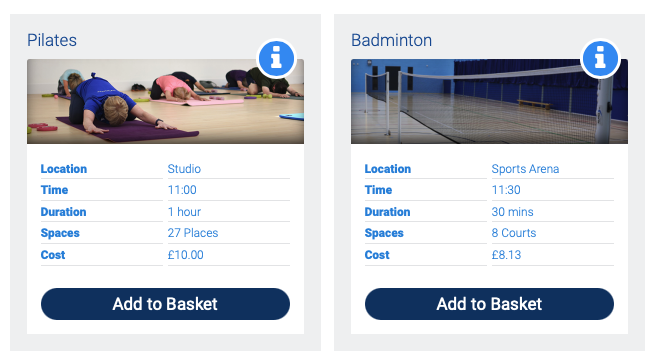
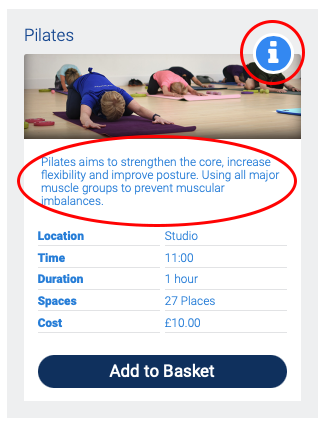
Selecting the information icon on an activity tile will reveal the activity description:
When the activity is fully booked it will remain on the available bookings page with the option for users to select to be notified via email if a space becomes available for this activity.
If a place becomes available for the activity, an automated email will be sent to all users who are part of the notify me list. The email contains a hyperlink for users to remove themselves from the notify me list. If a person books onto the activity, they will be taken off of the notify me list.


The Quick Book button will become available if the activity is free for the member and the member does not already have items in their basket.
Using the Quick Book button will allow a person to book a zero-cost activity without having to go through the checkout process.